KLING 4.0 · INDEPENDENT GUIDE

Kling V4.0 text to video: write the shot

A subject. An action. A camera move. Give your scene a clear beginning and enough room to unfold.

  • Kling 4.0 with native audio
  • 3–30 second clips
  • Free prompt workbench

Create

One optional starting image (PNG, JPEG, WebP, up to 10 MB)
Model
Aspect ratio
Length

225 credits

Buy credits

Your videos

Your next shot plays here

Describe a shot and its sound, choose a model and length, then generate. Videos are saved to your account.

Start from an idea

At a glance

Kling V4.0 text to video starts from a written scene instead of a supplied first frame. The prompt establishes subject, action, setting, camera and style. Generate it here with Kling 4.0, at 3–30 seconds with native audio, or with Kling 3.0 and 2.6, using credits. Use the free workbench to prepare a structured brief first.

Input
A written shot description
Structure
Subject, action, setting, light, camera
First test
One scene, one main action
Output here
A video with sound, or a free brief

Plan the shot for free

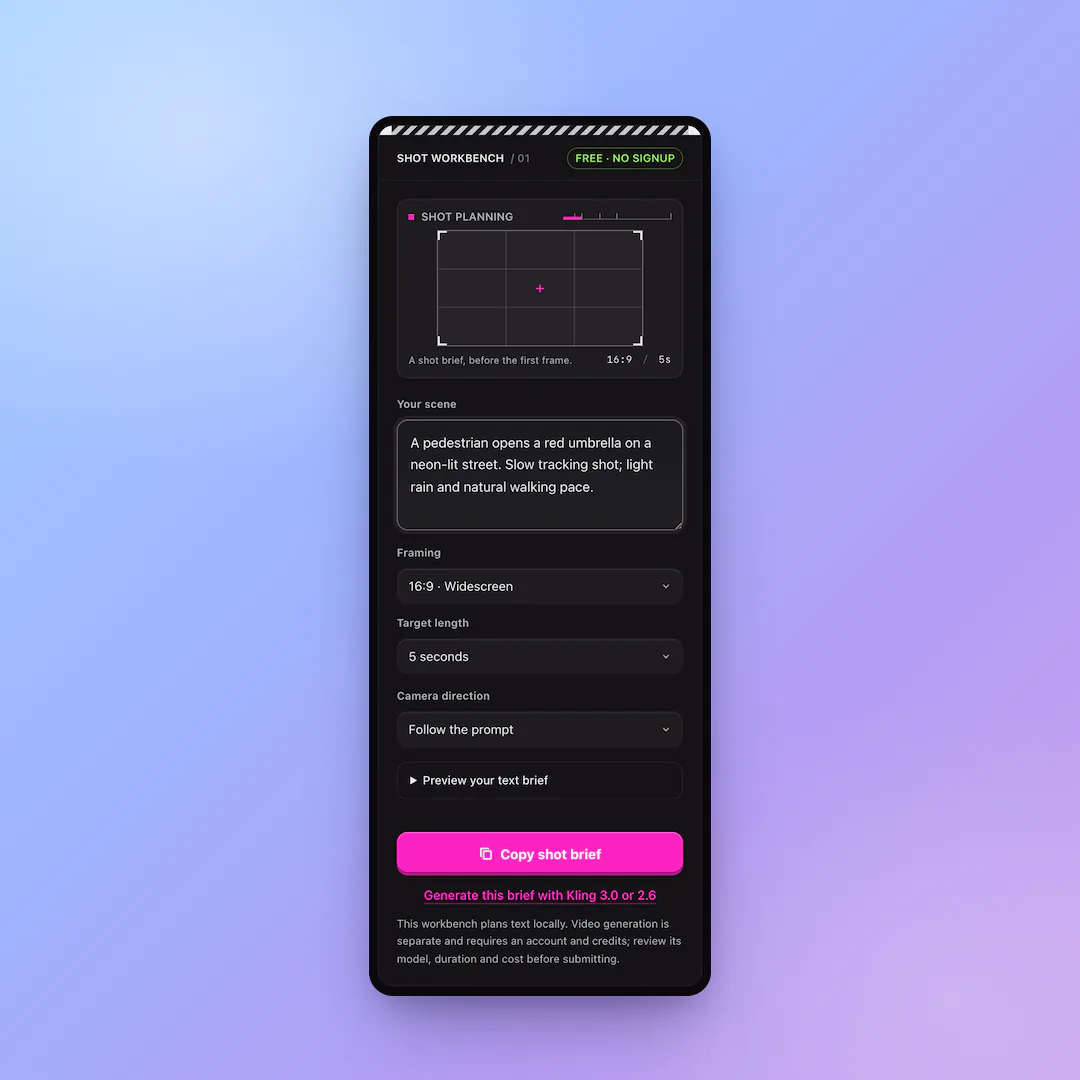
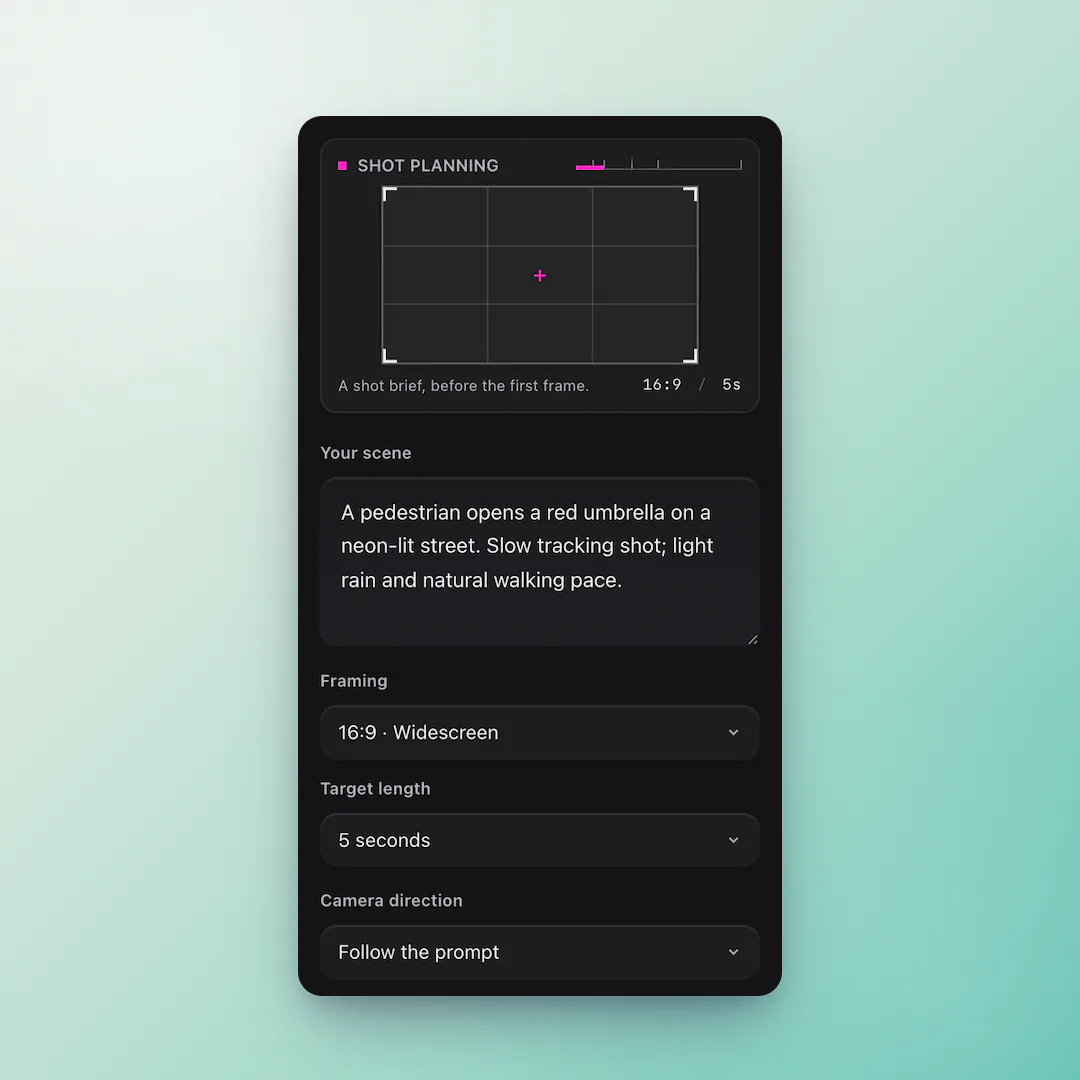
Write the scene, pick the framing, length and camera, then copy the brief or send it to the generator. It runs in your browser with no signup.

SHOT WORKBENCH / 01FREE · NO SIGNUP
Preview your text brief
A ceramic cup on a sunlit table. Steam curls upward as the camera slowly pushes in. Warm morning light, quiet room ambience.

Framing: 16:9. Target duration: 5 seconds; use a duration supported by the selected model.
Generate this brief with Kling 4.0

This workbench plans text locally. Video generation is separate and requires an account and credits; review its model, duration and cost before submitting.

What to know before you start

  • 01

    Put the action first

    A cyclist riding past a bakery gives more direction than a list of moods. Make the central visible event easy to identify.

  • 02

    Name one camera move

    Locked framing, a slow push-in and a tracking shot create different experiences. Choose one primary move rather than combining contradictory instructions.

  • 03

    Match scene and timing

    A short clip can show a gesture or reveal. A longer sequence needs intentional pacing; avoid compressing a whole narrative into the shortest mode.

From an idea to a prepared shot

  1. 01

    Define the moment

    Choose one subject and one visible action. Set the scene and lighting; for a reference image, concentrate on motion and the details that must remain consistent.

  2. 02

    Prepare the brief

    Pick an aspect ratio and a target duration, then choose one camera move. Copy the brief from the free workbench and save a version for later comparison.

  3. 03

    Render and review

    Generate with Kling 4.0, 3.0 or 2.6 and review the credit cost before submitting. Inspect the entire clip, including its last frames, before building on it.

A complete shot description

A baker places a warm loaf on a wooden counter in a small morning bakery. Flour dust hangs in a beam of window light. The camera slowly pushes in from a medium shot. This establishes an action, setting, lighting and camera without requesting unrelated transformations.

If you need dialogue or ambience, plan it separately from the visual action. Check native-audio support for the exact model and interface before relying on synchronized speech. A sound instruction in a prompt is not proof that the selected rendering mode supports audio.


Turn a story into shots

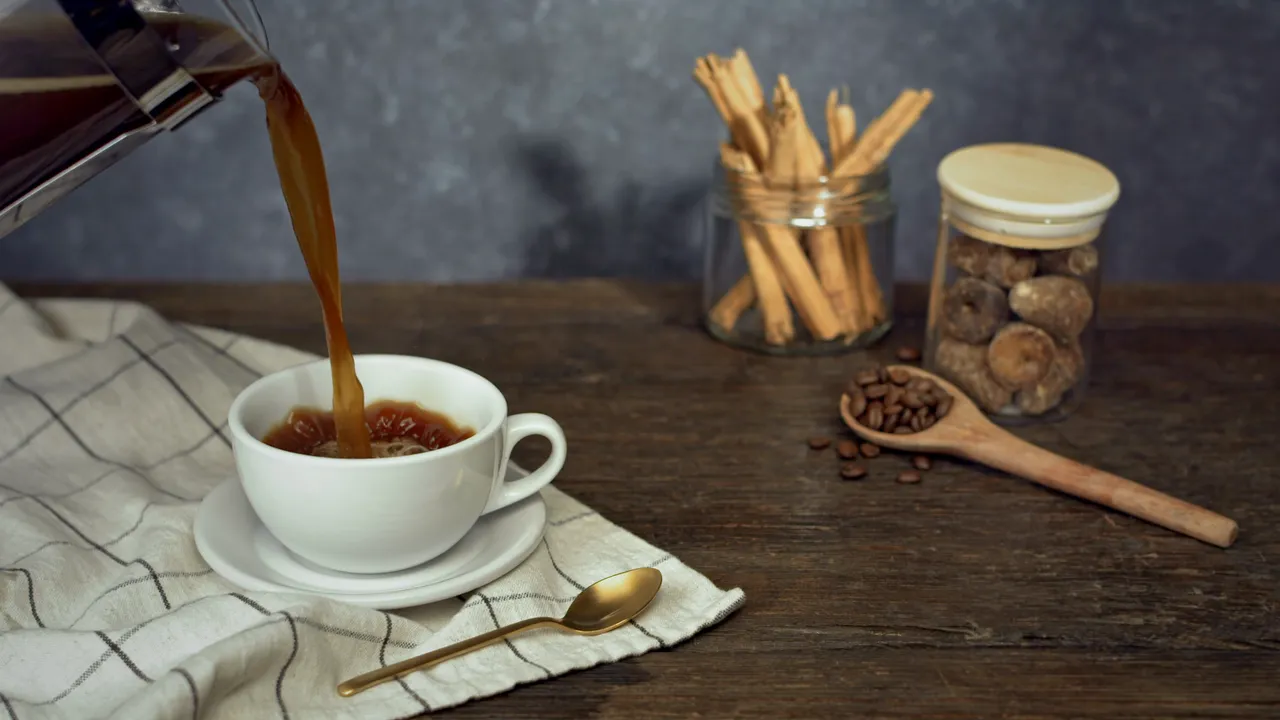
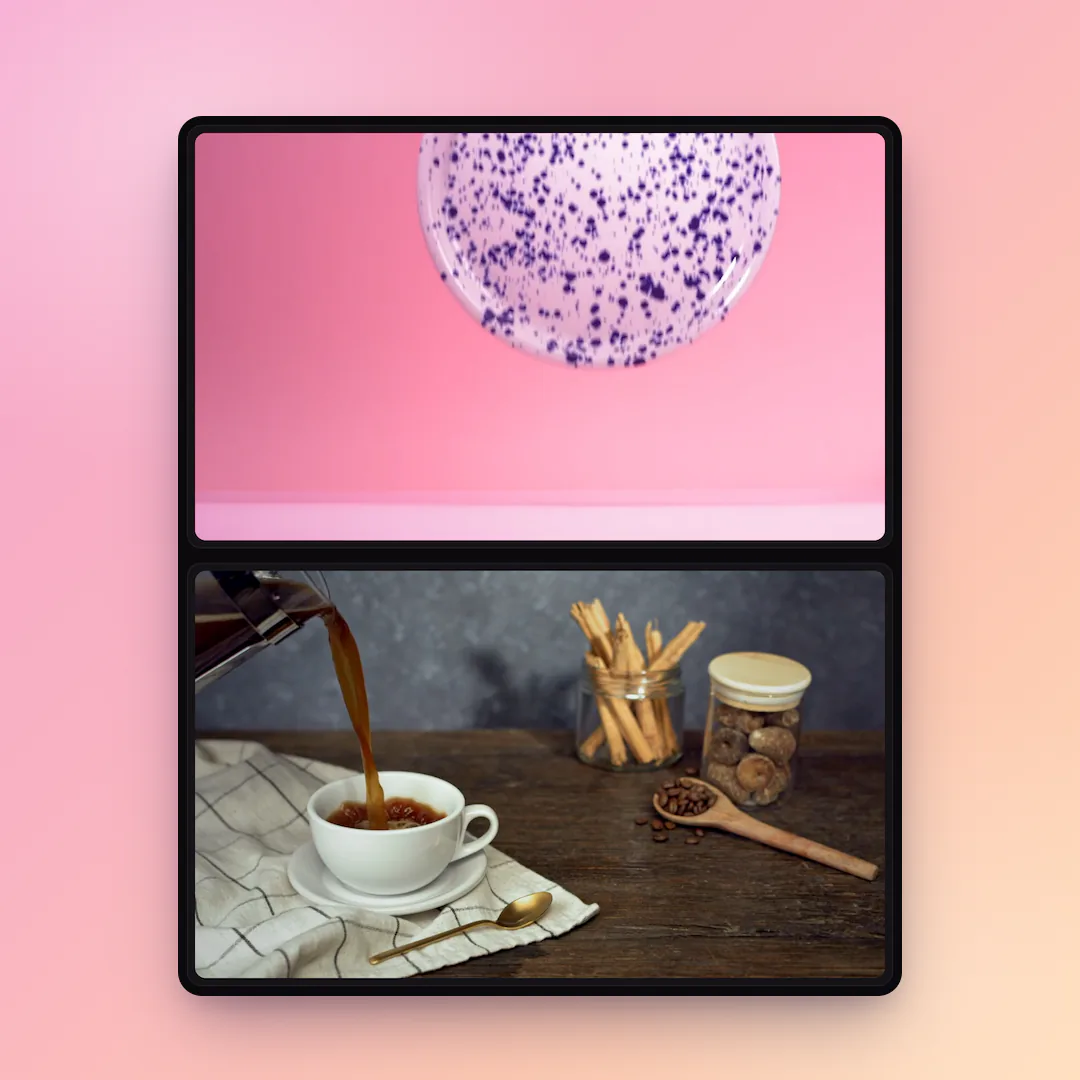
A café advertisement might need a storefront reveal, a coffee pour and a customer reaction. Each has a distinct subject and camera instruction. Creating them as separate shots can simplify review and editing instead of asking one short clip to do everything.

For a longer-generation mode, outline the beginning, transition and ending first. Keep character and location details consistent. If keyframe controls are live, use them to support your sequence instead of introducing an unrelated scene at every moment. Save useful prompts as reusable shot templates.

Check the official sources

Release coverage reflects official information checked on October 8, 2026. Our generator's Kling 4.0 settings follow our gateway's catalog on November 25, 2026. Official access, settings and prices may differ by account.

Questions, answered

How long should a text prompt be?

One to three clear sentences are a useful start. Include the subject, action, setting, light and camera. More words help when they resolve an ambiguity, not simply when they add adjectives.

Can I request dialogue?

Yes. Kling 4.0, 3.0 and 2.6 render native audio here, so you can put a short line of dialogue in quotes. Check lip sync and timing across the whole clip before relying on it for production.

Why is part of my prompt ignored?

Several actions, contradictory camera moves or an overloaded short duration can compete. Simplify the shot, put the essential event first and test a single revision.

Turn your idea into a clear shot

Plan a scene for free, then generate it with Kling 4.0, 3.0 or 2.6 using credits.

Last reviewed November 25, 2026

Create your account