KLING 4.0 · INDEPENDENT GUIDE

Kling V4.0 image to video: give your still a direction

Keep the image's identity. Describe the movement. Build a shot that has somewhere to go.

  • Kling 4.0 with native audio
  • 3–30 second clips
  • Free prompt workbench

Create

One optional starting image (PNG, JPEG, WebP, up to 10 MB)
Model
Aspect ratio
Length

225 credits

Buy credits

Your videos

Your next shot plays here

Describe a shot and its sound, choose a model and length, then generate. Videos are saved to your account.

Start from an idea

At a glance

Kling V4.0 image to video uses a visual reference to guide a moving scene. Here, Kling 4.0 animates one starting image into a 3–30 second clip with native audio, and the image sets the frame's shape. Describe motion, camera behavior and what should remain consistent. Plan the brief for free, then generate with credits.

Starting point
Your own licensed reference
Prompt focus
Motion and camera direction
Framing
Follows your starting image
Tools here
Free briefs; paid 4.0, 3.0 and 2.6

Plan the shot for free

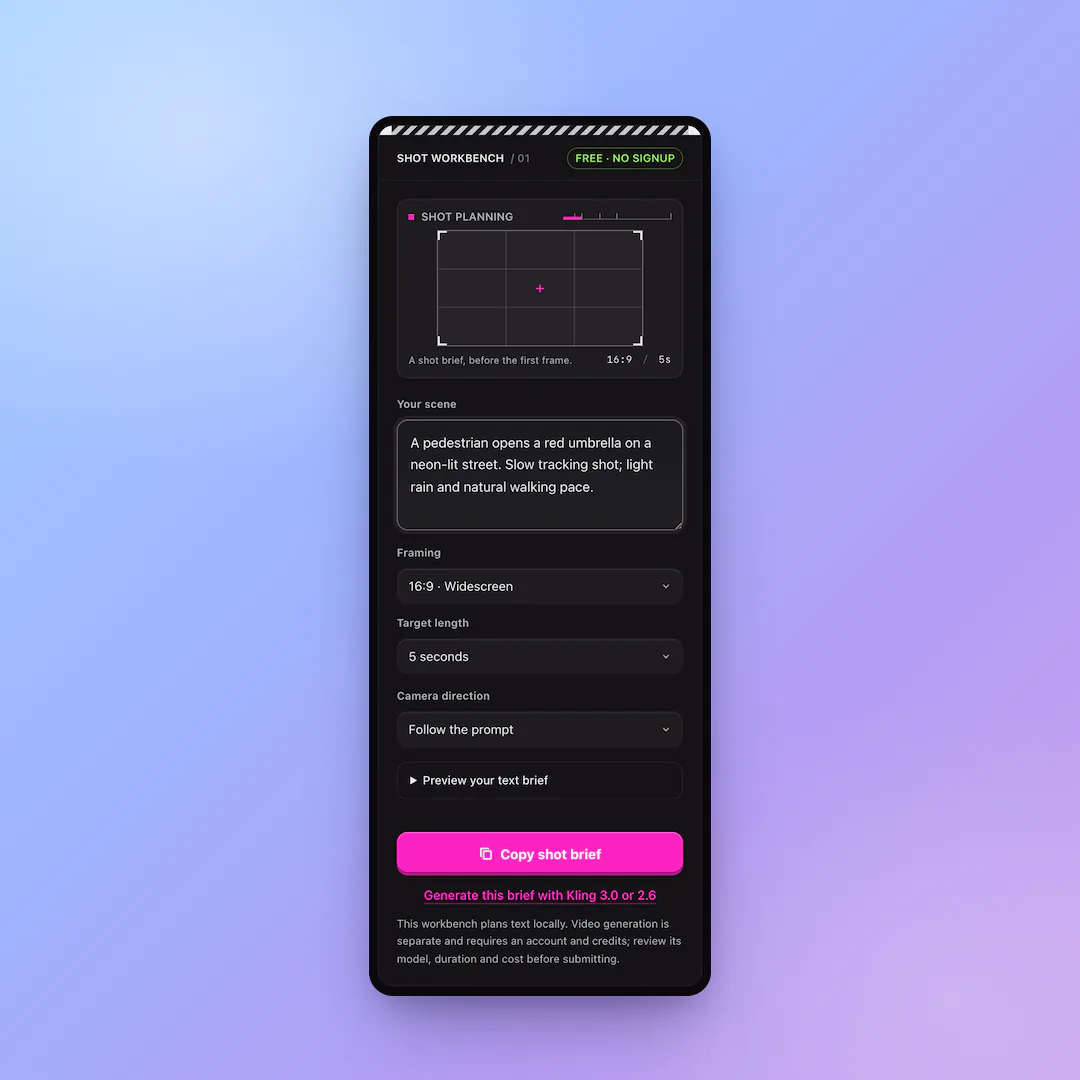
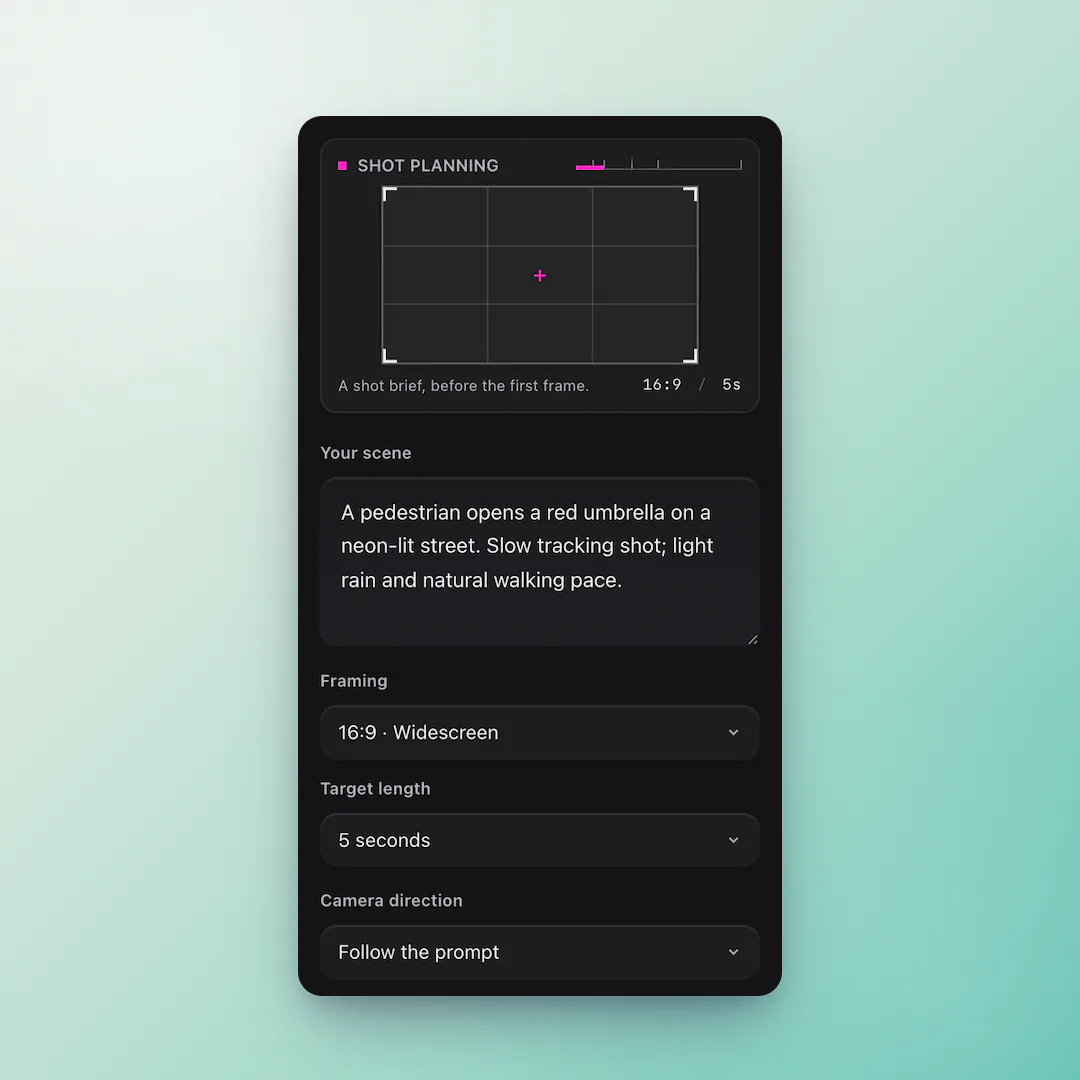
Write the scene, pick the framing, length and camera, then copy the brief or send it to the generator. It runs in your browser with no signup.

SHOT WORKBENCH / 01FREE · NO SIGNUP
Preview your text brief
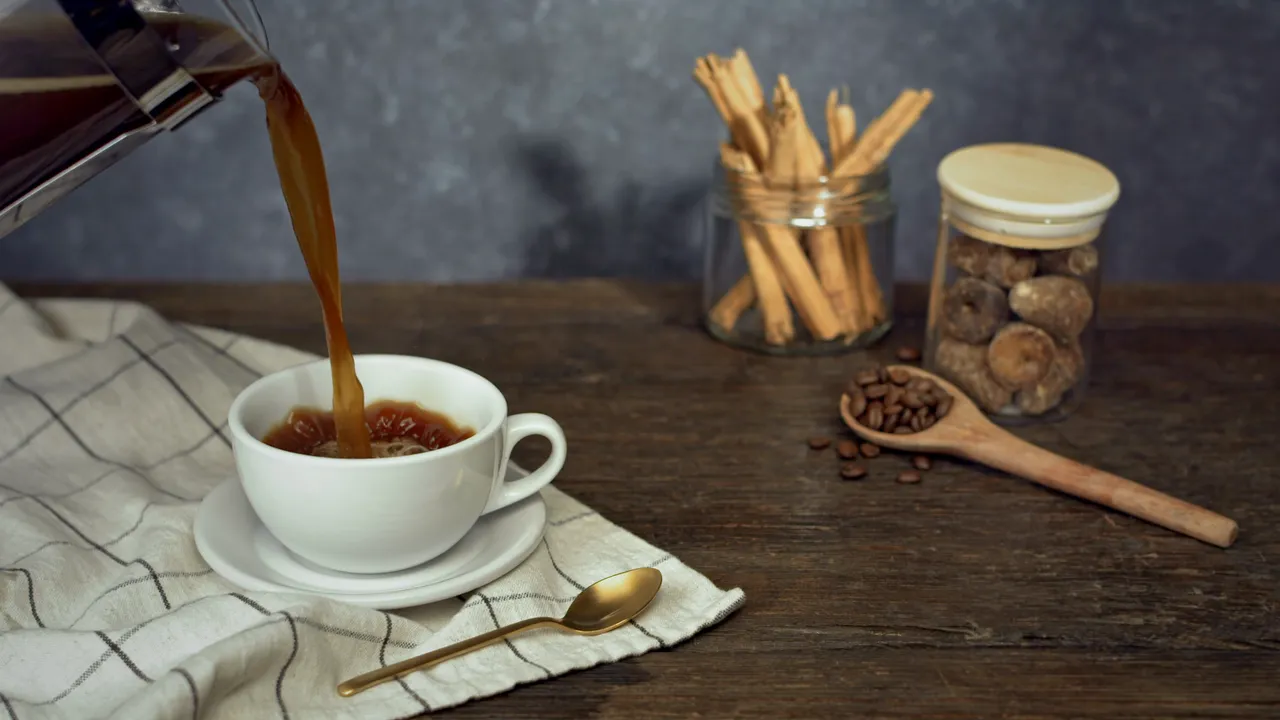
A ceramic cup on a sunlit table. Steam curls upward as the camera slowly pushes in. Warm morning light, quiet room ambience.

Framing: 16:9. Target duration: 5 seconds; use a duration supported by the selected model.
Generate this brief with Kling 4.0

This workbench plans text locally. Video generation is separate and requires an account and credits; review its model, duration and cost before submitting.

What to know before you start

  • 01

    Choose a strong first frame

    Use a clear subject with enough room for movement. A tight face crop leaves little space for a wide orbit; a clean product frame suits subtle motion.

  • 02

    Preserve identity

    Name what should stay stable: shape, clothing or composition. Avoid introducing many new objects that compete with your reference.

  • 03

    Describe what changes

    Focus on a visible action and one camera move. The image supplies appearance; your prompt should clarify how the shot unfolds over time.

From an idea to a prepared shot

  1. 01

    Define the moment

    Choose one subject and one visible action. Set the scene and lighting; for a reference image, concentrate on motion and the details that must remain consistent.

  2. 02

    Prepare the brief

    Pick an aspect ratio and a target duration, then choose one camera move. Copy the brief from the free workbench and save a version for later comparison.

  3. 03

    Render and review

    Generate with Kling 4.0, 3.0 or 2.6 and review the credit cost before submitting. Inspect the entire clip, including its last frames, before building on it.

Write a motion-first prompt

For a portrait: the subject turns slightly toward the window and blinks once, with a gentle camera push-in. Preserve facial identity and the existing background. This describes a change over time while leaving the image to establish appearance and composition.

For a bottle: the camera makes a slow quarter orbit while a reflection moves across the glass. Keep the label and shape consistent. If text or branding matters, inspect every part of the clip rather than assuming a reference guarantees perfect readability.

If the photo is of a pet who has died and you want a gentle keepsake rather than a directed shot, petmemorialvideo.app turns one favorite photo into a short clip of them running and playing again in soft light.

Avoid common reference failures

Extreme motion, large rotations and heavy occlusion make continuity harder. Start with subtle actions and inspect the end frame before extending a shot. A reference guides the model but should not be treated as an absolute identity guarantee.

For several shots, keep reference assets, wardrobe and lighting consistent. Use a continuity checklist covering facial features, product shape and background. Our generator takes one starting frame; the multi-keyframe and reference-element tools in the announcement are not offered here.

Check the official sources

Release coverage reflects official information checked on October 8, 2026. Our generator's Kling 4.0 settings follow our gateway's catalog on November 25, 2026. Official access, settings and prices may differ by account.

Questions, answered

Can I upload an image here?

Yes, in the generator at the top of this page. Upload one PNG, JPEG or WebP starting image under 10 MB for Kling 4.0, 3.0 or 2.6. The free prompt workbench remains local and does not upload images.

Should I describe every object in the image?

Usually focus on movement and the details that must stay stable. Re-describing every visible object can distract from the action or contradict the reference.

Does Kling V4.0 image to video guarantee identity?

No model should be treated as a guarantee of perfect continuity. Check identity, shape and background across the complete clip, especially during rotations and occlusions.

Turn your idea into a clear shot

Plan a scene for free, then generate it with Kling 4.0, 3.0 or 2.6 using credits.

Last reviewed November 25, 2026

Create your account